
AI Tools and Productivity
How to Edit Photos with AI in Google Photos in India: Nano Banana Guide (2026)
By ProAccess Team, ProAccess.me · 27 November 2026 · 9 min read
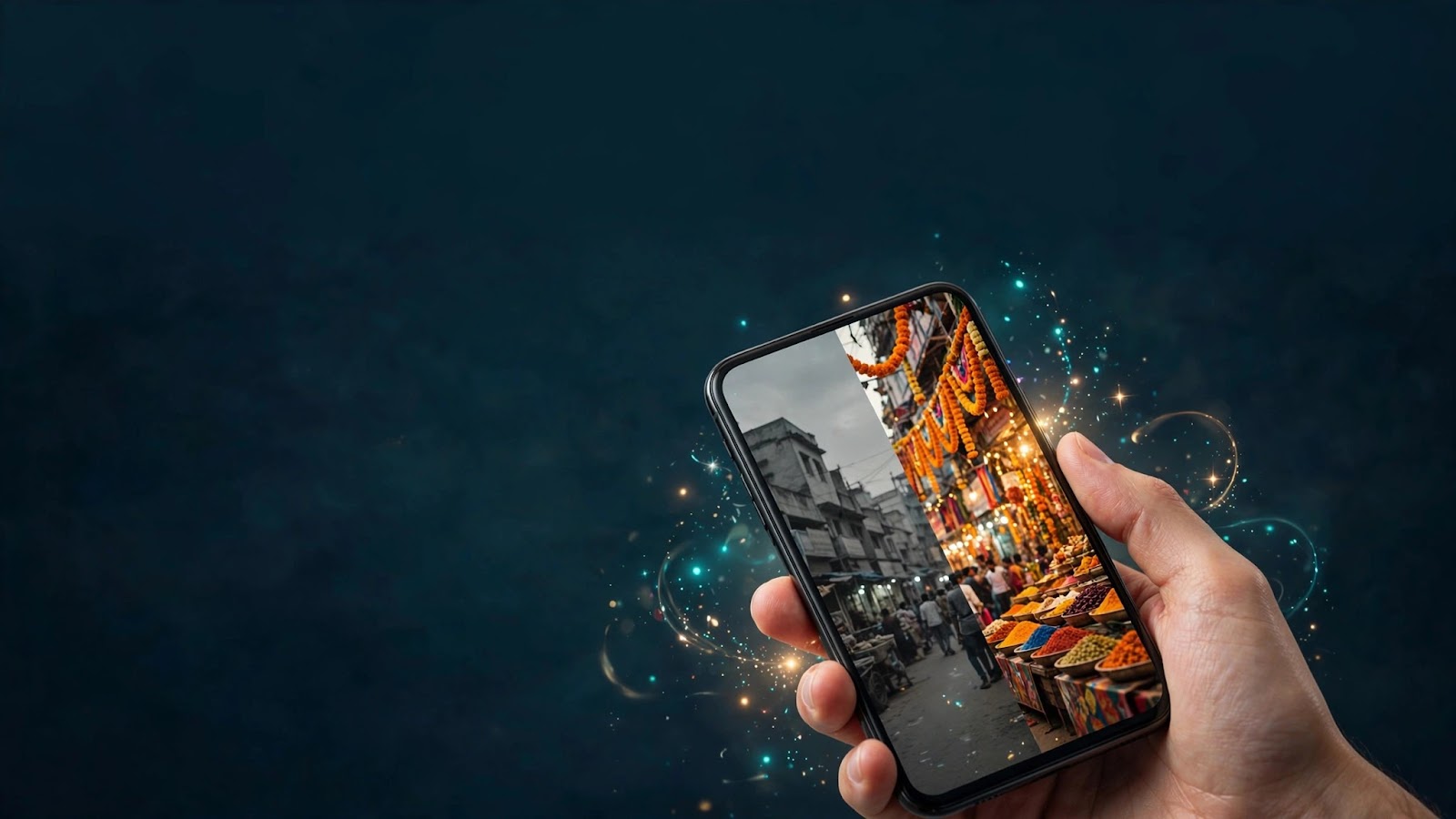
Imagine opening a holiday photo and saying, "Remove the stranger in the background and brighten the sunset" — and watching it happen. On 26 November 2026, Google brought AI photo editing to India, letting users edit photos by describing the change in text or voice, powered by Gemini and its image model, Nano Banana.
If you take photos on your phone every day — family functions, food, travel, work headshots — this guide is for you. No editing skills or paid subscription needed.
What Just Arrived in India: AI Editing in Google Photos
On 26 November 2026, Google Photos began rolling out AI photo editing to users in India, covered the same day by Gadgets 360 and NDTV. It matters because of who it reaches: Google Photos is already on virtually every Android phone in the country. It is the app most Indians open daily, and it can now edit photos the way you would describe them to a friend.
One point of context keeps the news honest. The feature set was announced globally by Google on 11 November 2025. What happened on 26 November 2026 is the India arrival of these tools, with Indian-language support and an Android-first rollout. A meaningful expansion, not a world-first launch.
The 26 November 2026 News — Text and Voice Editing Lands for Indian Android Users
The headline feature is conversational editing. Instead of hunting through sliders for brightness, contrast and saturation, you describe the result you want — by typing or speaking — and the AI applies it. The tools need Android 8.0 or higher with at least 4GB of RAM, so most recent phones qualify. Several Indian languages are supported for prompts. Google is also adding content credentials to AI-edited images.
What Nano Banana Is — Google's Image Model Behind the New Tools
Nano Banana is Google's image generation and editing model — the engine behind the creative side of this update. According to Google, it has been used over 500 million times globally, a company-reported figure. It is now expanding beyond Google Photos into Google Lens and AI Mode in Search, with users in India and the US first in line. In practice, it restyles a photo — turning a portrait into a painting, a storybook illustration or a mosaic — while keeping people recognisable.
The New Features, Explained
The update is not one feature but a set of four, each aimed at a different job.
Help Me Edit — Type or Say What to Change
Help me edit is the centrepiece. Open a photo and describe the change in plain words: "remove the sunglasses", "brighten the sky", "make the background blurry". The AI applies the edit, and you can refine it in conversation — "a little brighter", "now crop it tighter" — instead of starting over. It also offers personalised fixes for people in your photos, using Face groups to tune lighting for each familiar face.
Nano Banana Restyle — Creative Scene Transformations
Restyle is the fun side of the update. Ask Nano Banana to reimagine a photo as a Renaissance portrait, a tile mosaic, a storybook page or a professional headshot, and it rebuilds the scene in that style while keeping the subject recognisable. This is the feature behind the viral-style edits you may have seen online. Restyles suit creative posts best, not documentary photos.
Create with AI Templates — Ready-Made Headshots and Cards
Create with AI offers ready-made templates for common needs: professional headshots, holiday cards and similar designs. Pick a template, choose a photo, and the AI generates a finished result. The templates are available in the US and India for users aged 18 and over. For anyone needing a decent LinkedIn photo in a hurry, this is the most practical feature in the set — a usable headshot in under a minute.
Ask Photos — Find Any Photo by Asking in Plain Language
Ask Photos turns your photo library into something you can question. Instead of scrolling through thousands of images, ask "show me photos from Diwali" or "find the pictures where Aarav is wearing a blue kurta" and it searches by content, people and context. It is rolling out to more than 100 countries with 17 new languages added. An Ask button lets you question a single photo too. For families with years of photos across festivals and weddings, it may become the most-used feature of the four.
How to Edit Photos with AI in Google Photos (Step-by-Step)
Here is the full workflow, from checking your phone to your first finished edit.
Step 1 — Check Your Phone Meets the Requirements
Make sure your phone runs Android 8.0+ with at least 4GB of RAM, then update Google Photos from the Play Store. Features roll out gradually, so if you do not see them yet, check again in a few days — availability varies, and some features reach Google AI Pro and Ultra subscribers in the US first.
Step 2 — Open a Photo and Tap Help Me Edit
Open any photo and look for Help me edit. Type your request or tap the microphone and speak it: "remove the photobomber on the left" or "make the colours pop". Review the result, then refine it with follow-ups. Short, specific requests work best.
Step 3 — Try a Creative Restyle with Nano Banana
Pick a photo with a clear subject — a portrait or a favourite travel shot — and try a restyle prompt such as "turn this into a storybook illustration". Compare with the original before saving; if it misses the mark, rephrase rather than repeat.
Step 4 — Use Create with AI Templates for Headshots and Cards
Open Create with AI, choose a template, and select a well-lit photo where your face is clearly visible. Check the result carefully before professional use. Save the ones you like; generating variations costs nothing.
Step 5 — Find Any Photo with Ask Photos
Try a natural-language search such as "show me photos from Diwali" or "photos of the kids at the beach". If it is too broad, narrow it with a person, place or year — then jump straight into editing with Help me edit.
Prompt Tips — How to Get Better Results
- Be specific. "Brighten the sky and remove the wire" beats "make it better".
- One change at a time. Stacking five requests in one prompt produces a muddled result.
- Iterate in conversation. Its 32,768-token context window remembers your edit history, so follow up with "a bit warmer".
- Start simple, then get creative. Learn on easy fixes — lighting, clutter, cropping — first.
- Try your own language. Prompts work in several Indian languages.
What You Need to Know Before You Edit
Indian-Language Support
Prompts are supported in several Indian languages, not just English. That lowers the barrier considerably for users who think about their photos in Hindi, Tamil, Bengali or another Indian language. Try your preferred language first — and rephrase in English if a phrase fails.
Content Credentials — AI-Edited Images Are Labelled
Photos edited with these tools carry content credentials identifying them as AI-edited. That matters when you share images: recipients and platforms can tell the photo was modified by AI. A sensible safeguard — but a heavily restyled photo should not be presented as an untouched original.
Limits — Availability Varies
Rollouts are gradual: some features reach Google AI Pro and Ultra subscribers in the US first, and availability in India varies by region and device. No subscription is required for the core Help me edit features as they arrive in India.
Google Photos vs Dedicated Editors: When to Upgrade
Google Photos now handles everyday fixes and fun restyles well — but it is a phone app with conversational controls, not a professional editor.
| Tool | Best for | Strengths | Limits |
|---|---|---|---|
| Google Photos AI editing | Everyday fixes | Free, conversational, on your phone | Basic controls; rollout-dependent |
| Gemini AI Pro | Full Gemini + Nano Banana | Newest models, higher limits | Paid |
| CapCut Private | Creator reels and templates | Templates, effects, photo + video | Creator-focused |
| Adobe Creative Cloud | Professional photo work | Photoshop, Lightroom, full control | Paid, complex |
The honest take: Google Photos is enough for everyday fixes and social posts. When you want precise control — layered edits, batch processing or video — a dedicated editor earns its place.
Gemini AI Pro is the natural next step for anyone who likes Nano Banana editing in Google Photos and wants the full Gemini experience. CapCut Private suits creators who want deeper editing, templates and effects for reels and social content. And Adobe Creative Cloud — Photoshop and Lightroom included — is the pro-grade destination when you outgrow phone-based editing and want full manual and AI control.
Frequently Asked Questions
Is Google Photos AI editing available in India? Yes — Google began the India rollout on 26 November 2026, covering Help me edit, Nano Banana restyles, Create with AI templates and Ask Photos. Availability is gradual.
What is Nano Banana in Google Photos? Nano Banana is Google's image model behind the creative editing features in Google Photos. It powers restyles — paintings, storybook illustrations and mosaics — and, according to Google, has been used over 500 million times globally.
Do I need a subscription to use Help me edit? No. The core Help me edit features need no subscription in India, though some features reach Google AI Pro and Ultra subscribers in the US first, and availability can vary.
Which phones support Google Photos AI editing? Android 8.0 or higher with at least 4GB of RAM, with the latest Google Photos installed. The tools are also expanding to iOS.
Can I edit photos in Hindi or other Indian languages? Yes — prompts work in several Indian languages, by typing or by voice.
How do I know if a photo was AI-edited? Google Photos adds content credentials to AI-edited images, marking them as AI-edited.
Conclusion
Photo editing in India just changed from sliders and filters to conversation. You describe the change — in English, Hindi or another Indian language, by text or voice — and Google Photos, powered by Gemini and Nano Banana, does the work. Help me edit handles the fixes, restyles add the flair, and Ask Photos makes a library of thousands searchable.
Open Google Photos, update the app, and try one edit on a photo you already love. And if you want more — the full Gemini models, deeper creator tools or professional control — Gemini AI Pro is the direct upgrade, with CapCut and Adobe Creative Cloud waiting when your ambitions outgrow your phone.
FAQ
Is Google Photos AI editing available in India?
Yes — Google began the India rollout on 26 November 2026, covering Help me edit, Nano Banana restyles, Create with AI templates and Ask Photos. Availability is gradual.
What is Nano Banana in Google Photos?
Nano Banana is Google's image model behind the creative editing features in Google Photos. It powers restyles — paintings, storybook illustrations and mosaics — and, according to Google, has been used over 500 million times globally.
Do I need a subscription to use Help me edit?
No. The core Help me edit features need no subscription in India, though some features reach Google AI Pro and Ultra subscribers in the US first, and availability can vary.
Which phones support Google Photos AI editing?
Android 8.0 or higher with at least 4GB of RAM, with the latest Google Photos installed. The tools are also expanding to iOS.
Can I edit photos in Hindi or other Indian languages?
Yes — prompts work in several Indian languages, by typing or by voice.
How do I know if a photo was AI-edited?
Google Photos adds content credentials to AI-edited images, marking them as AI-edited.
Looking for premium tools?
Browse ProAccess store